

- Date and Time
- Promo Code
- Attendee Information
- Ticket Information
- Pricing Details
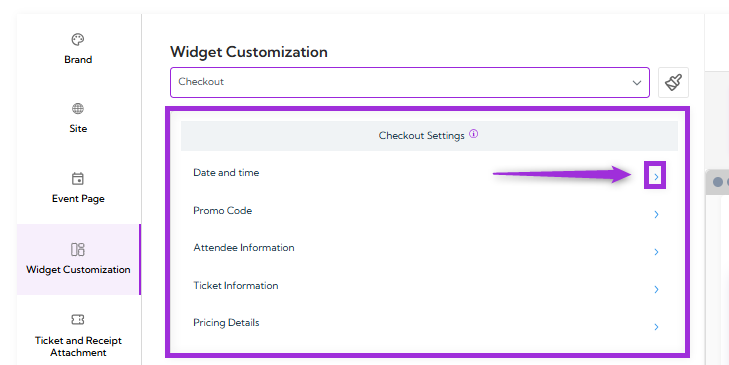
Date and Time
Date and Time controls how event dates, times, and time zones are shown during checkout, helping attendees clearly understand when the event begins and ends. The table below explains each field.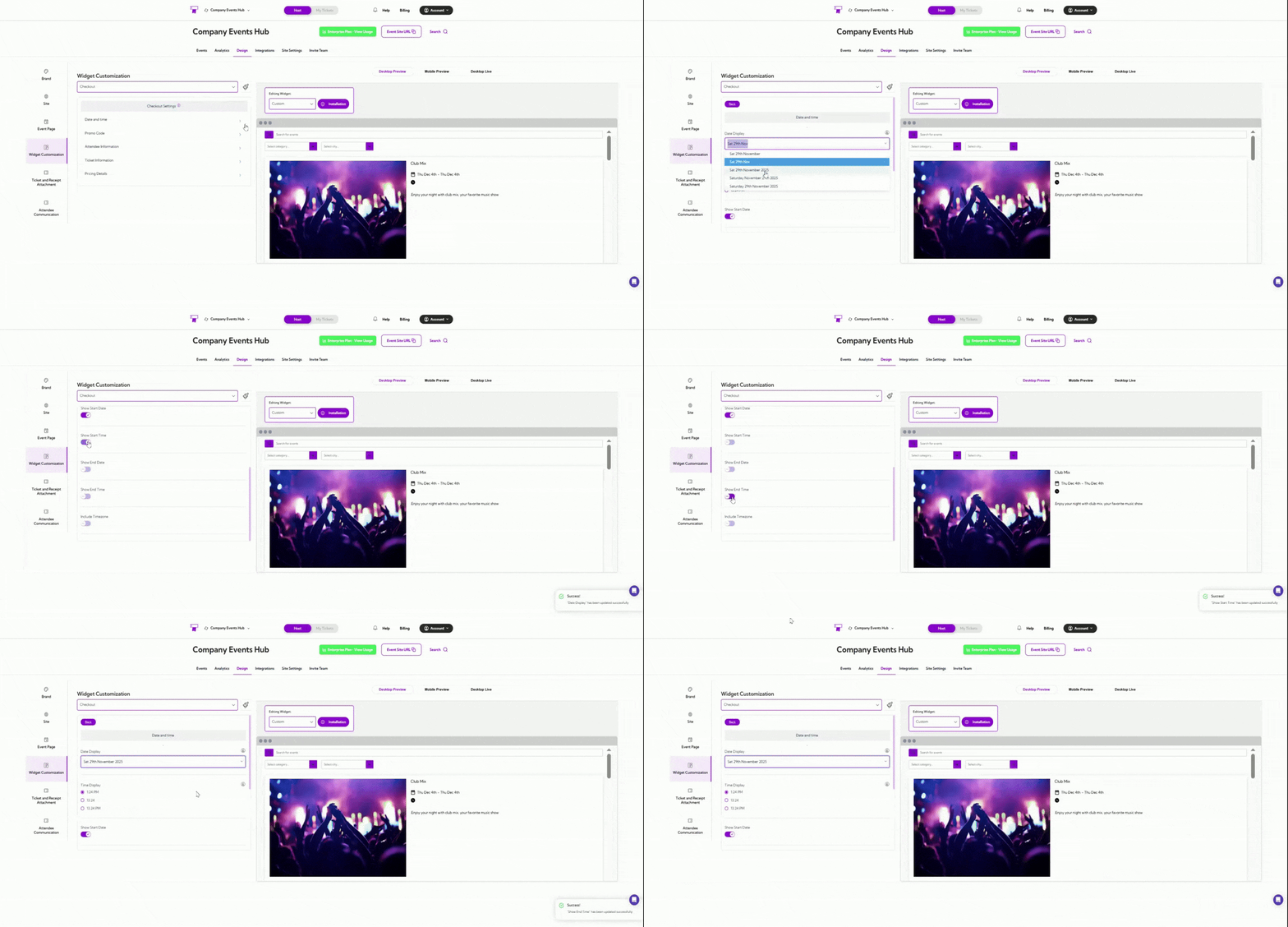
Promo Code
Promo Code settings control how discount codes appear and function during the checkout process. You can choose whether to show the promo code field, automatically expand it, and decide where it should be placed for better visibility.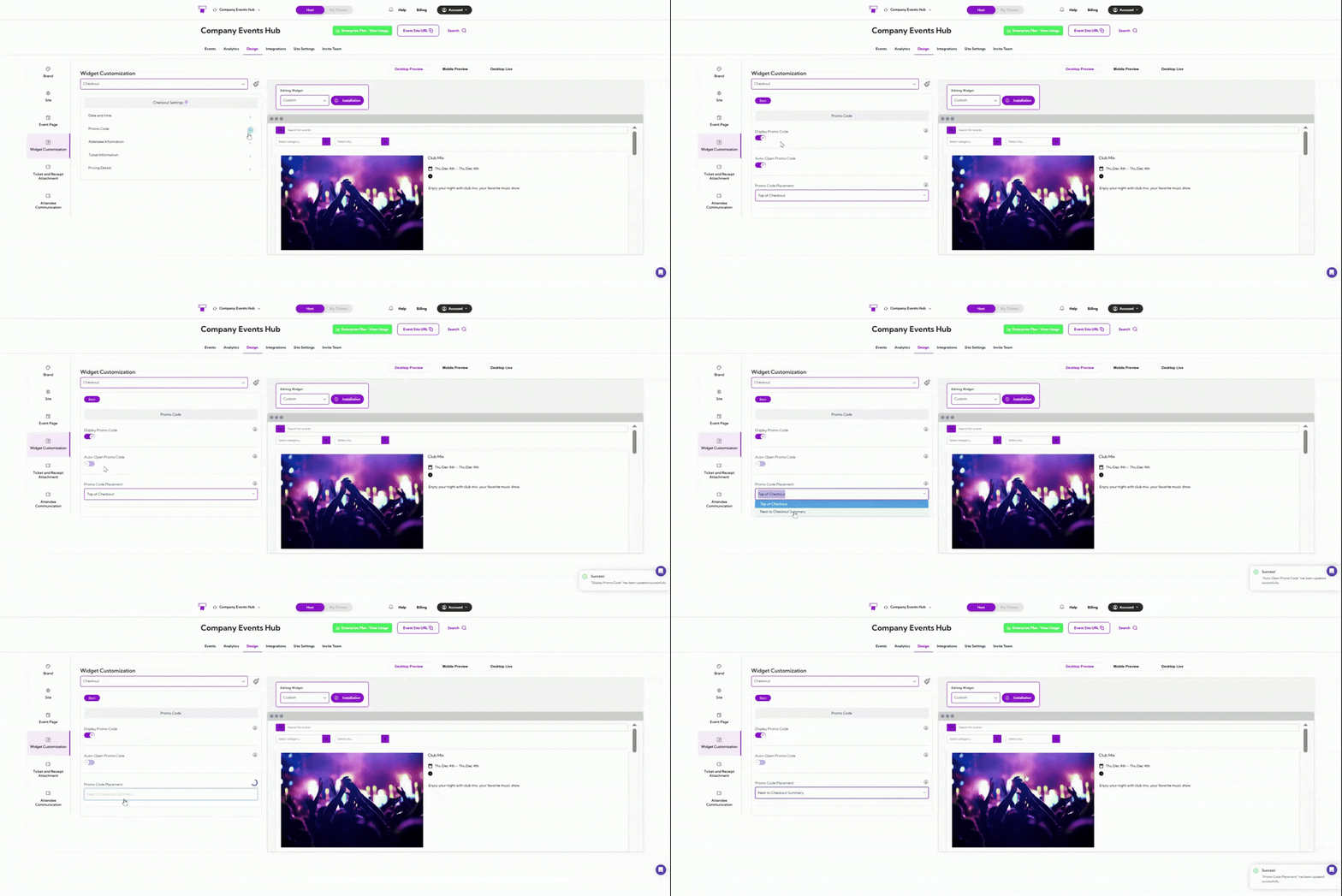
Attendee Information
Attendee Information controls how attendee details are collected during checkout. These settings determine whether information is captured for each attendee or only for the primary buyer, and whether certain fields appear on the checkout form.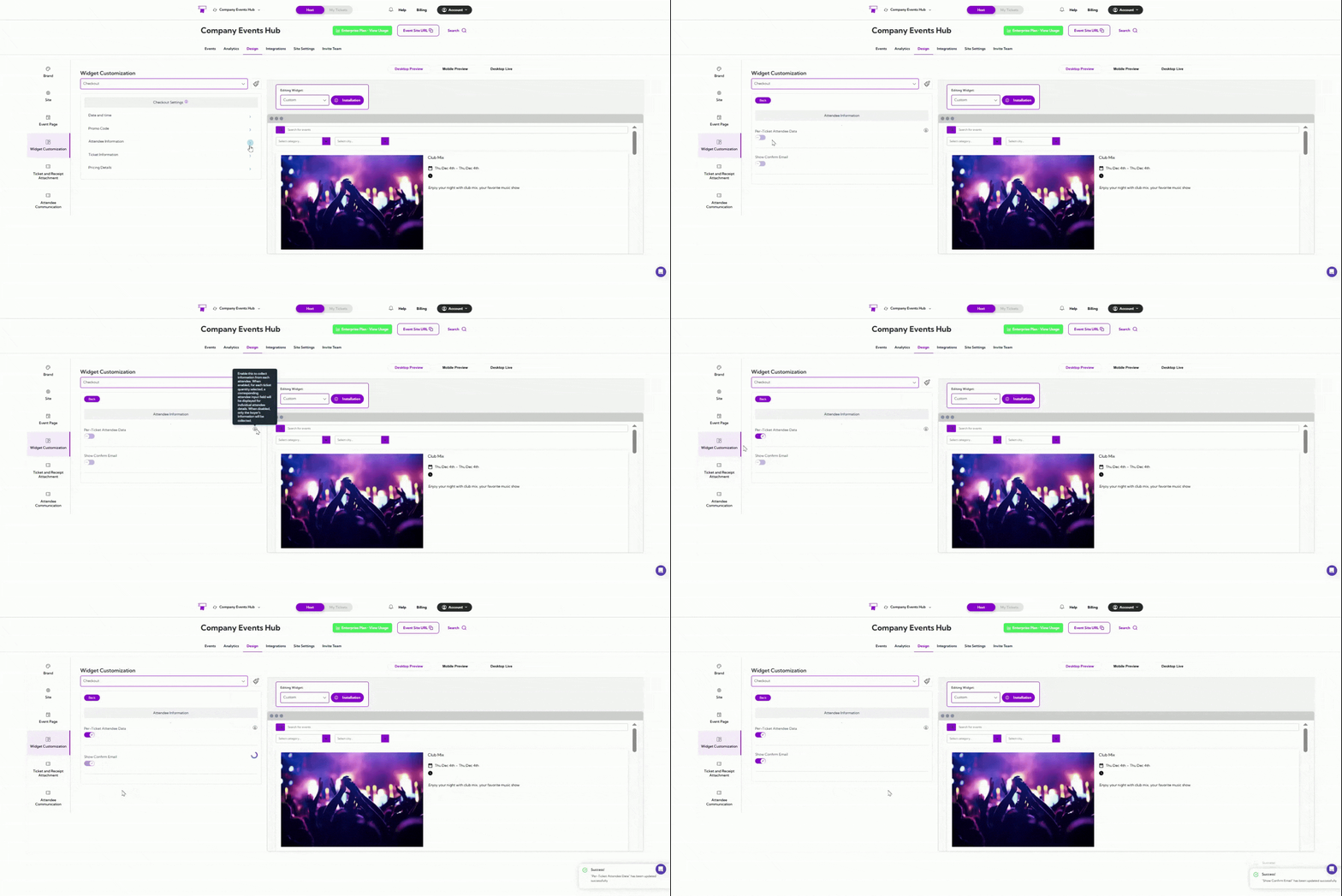
Ticket Information
Ticket Information in Widget Customization controls what ticket-related details are shown to users during checkout. This helps you decide how much availability information you want to display within your widget’s design.Ticket Availability
Enable this option to show the number of tickets remaining for the selected event. When turned on, attendees can see how many spots are left before completing their purchase. Turn it off if you prefer not to display availability or want to keep the checkout interface simpler.
Pricing Details
Pricing Details settings allow you to control how pricing information appears during checkout. These settings help you manage what users see in the cost breakdown, keeping the interface as simple or detailed as you prefer.- Hide Cart Summary: Enable this option to hide the full cart summary during checkout. When enabled, users will not see the detailed order breakdown or total cost section.
- Hide Free Price Label: Enable this option to remove the “Free” label from events that do not require payment. This is useful when you prefer a cleaner or more neutral presentation for zero-cost tickets.
