
Navigation
Step 1: Log in to your Ticket Spot account and click on the Design tab.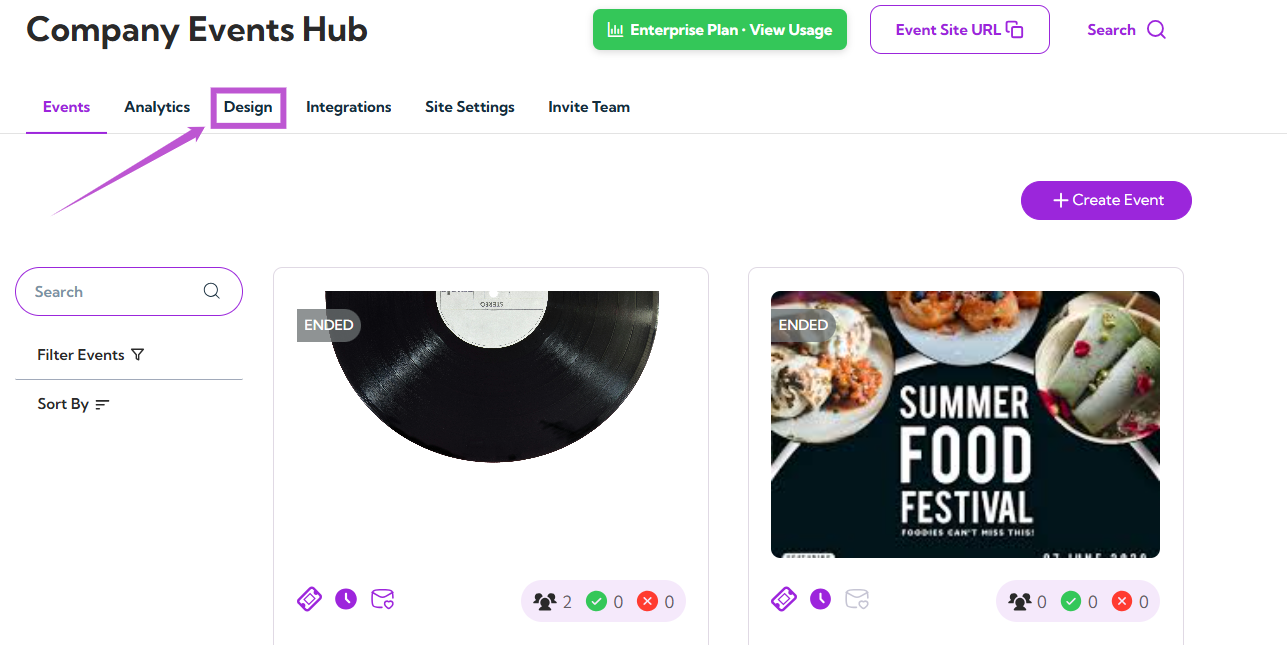
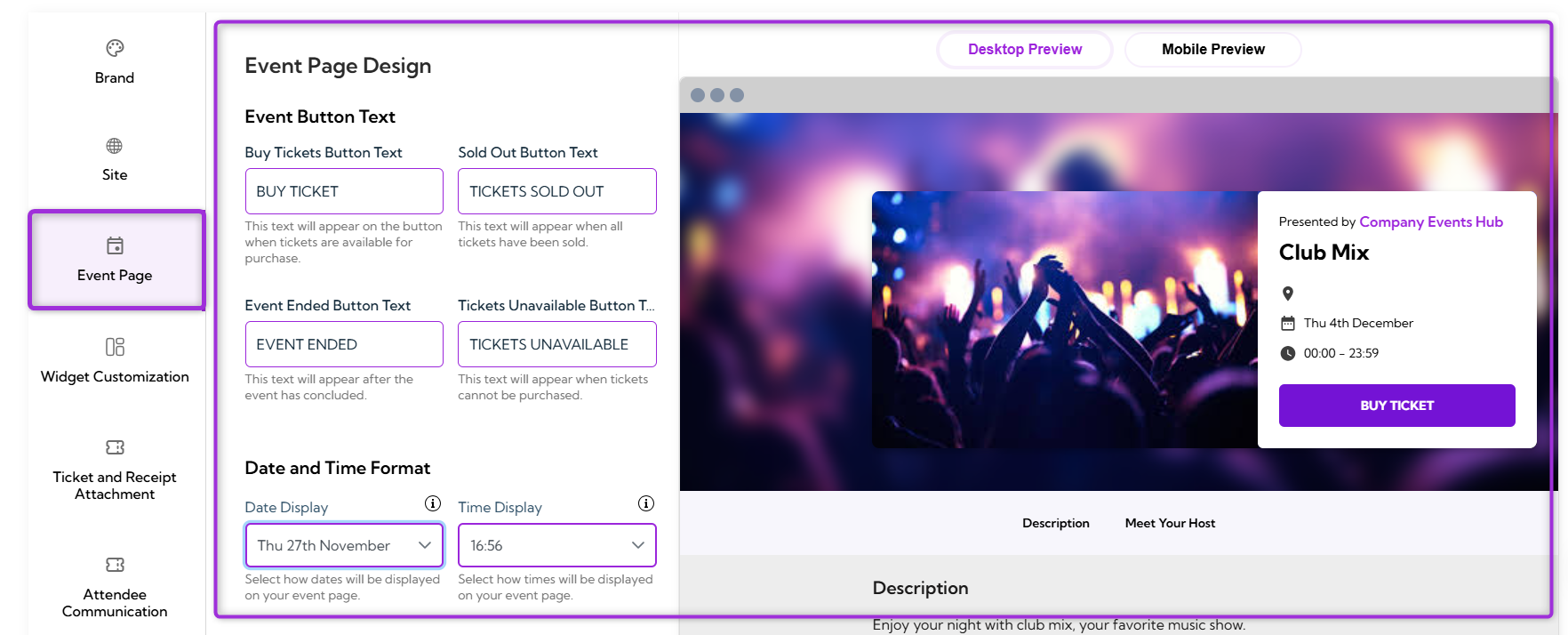
Event Button Text
Event Button Text section allows you to customize the text displayed on various action buttons across your event page. Updating these labels helps you maintain consistent messaging and ensures attendees clearly understand each event state.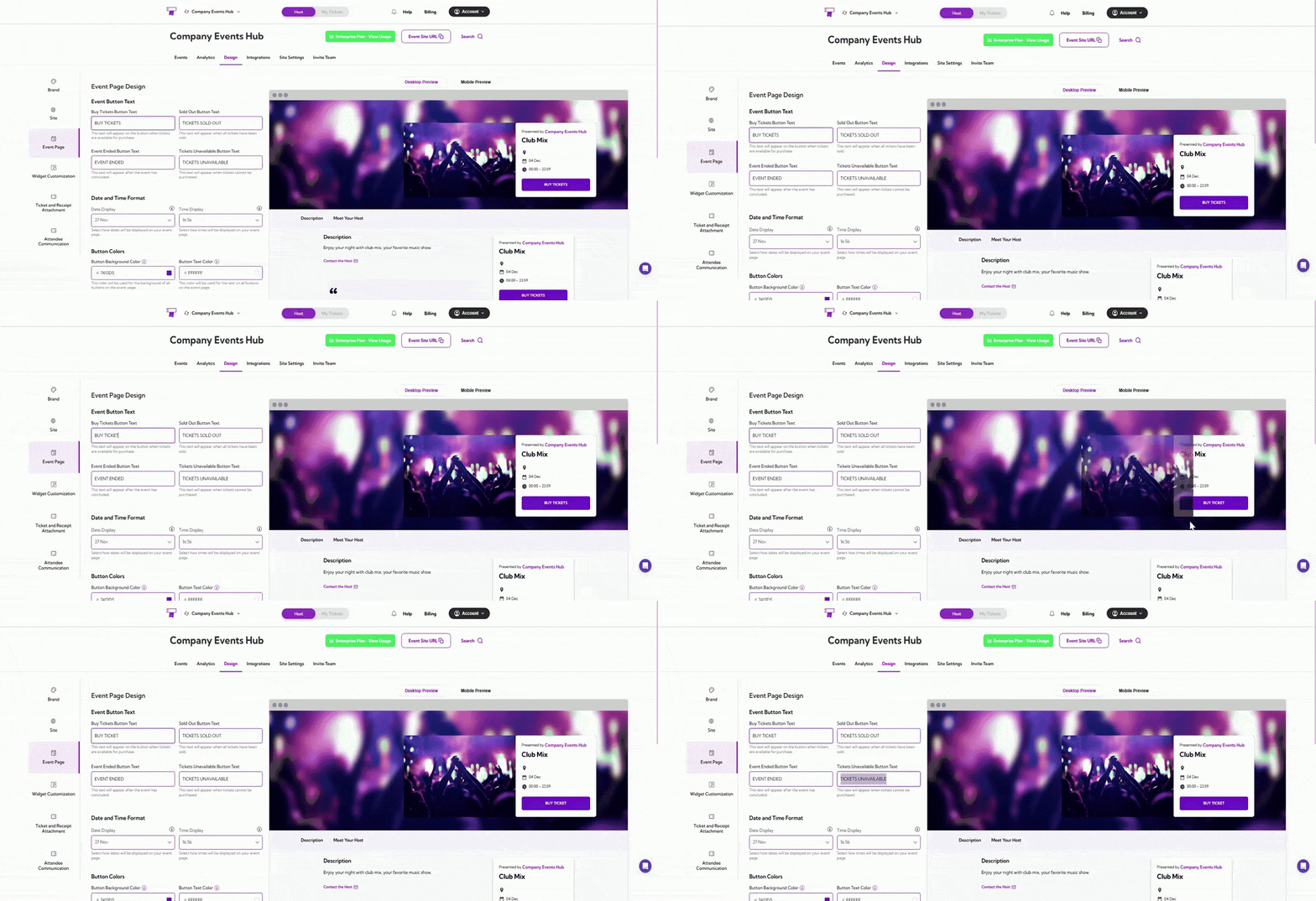
Date and Time Format
Date and Time Format section allows you to choose how dates and times are displayed on your event page. Adjusting these formats helps ensure the event information matches your preferred style or regional format.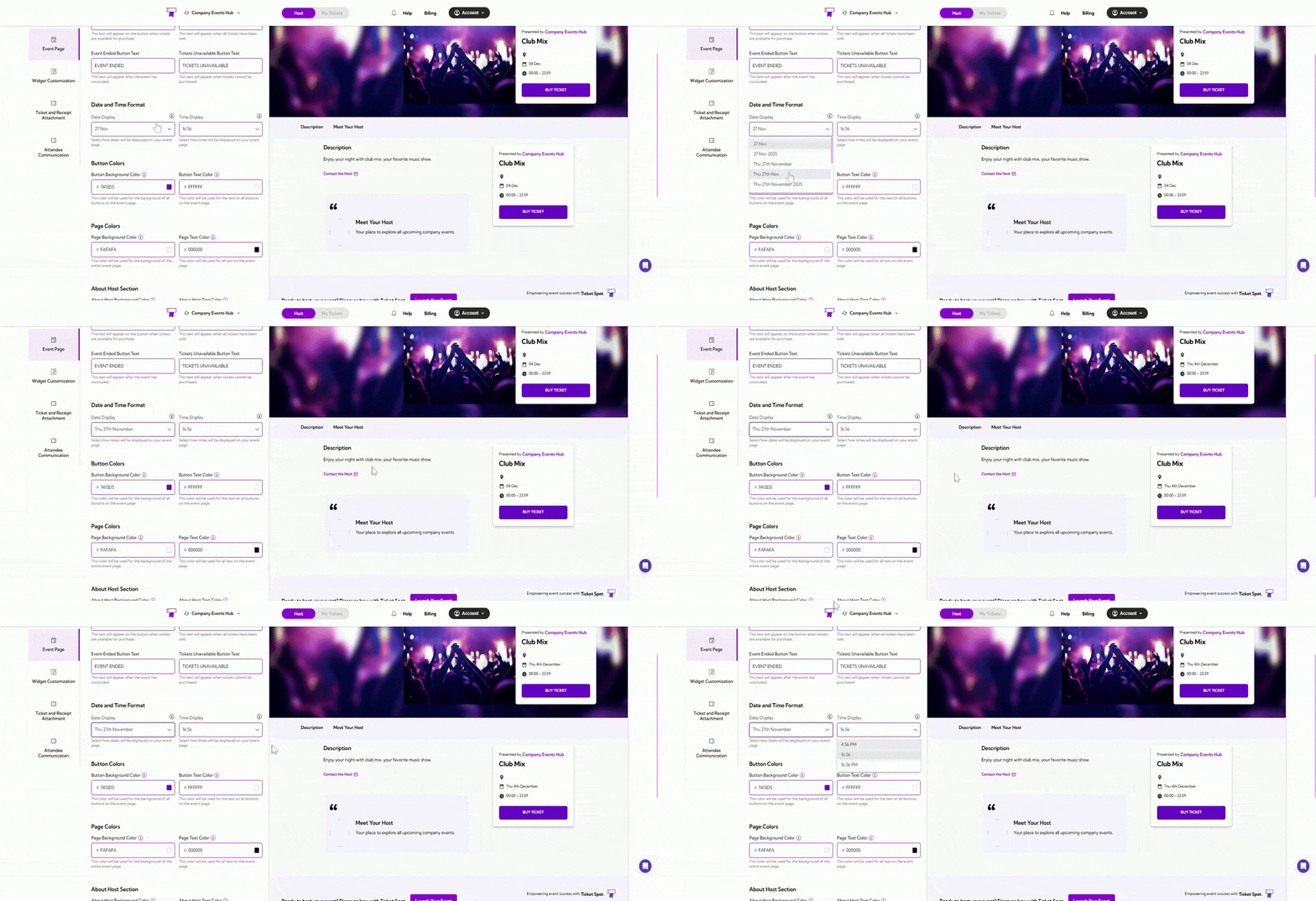
Page Colors
Page Colors section allows you to customize the overall color theme of your event page. You can adjust both the background and text colors to match your brand’s identity and ensure a visually consistent experience.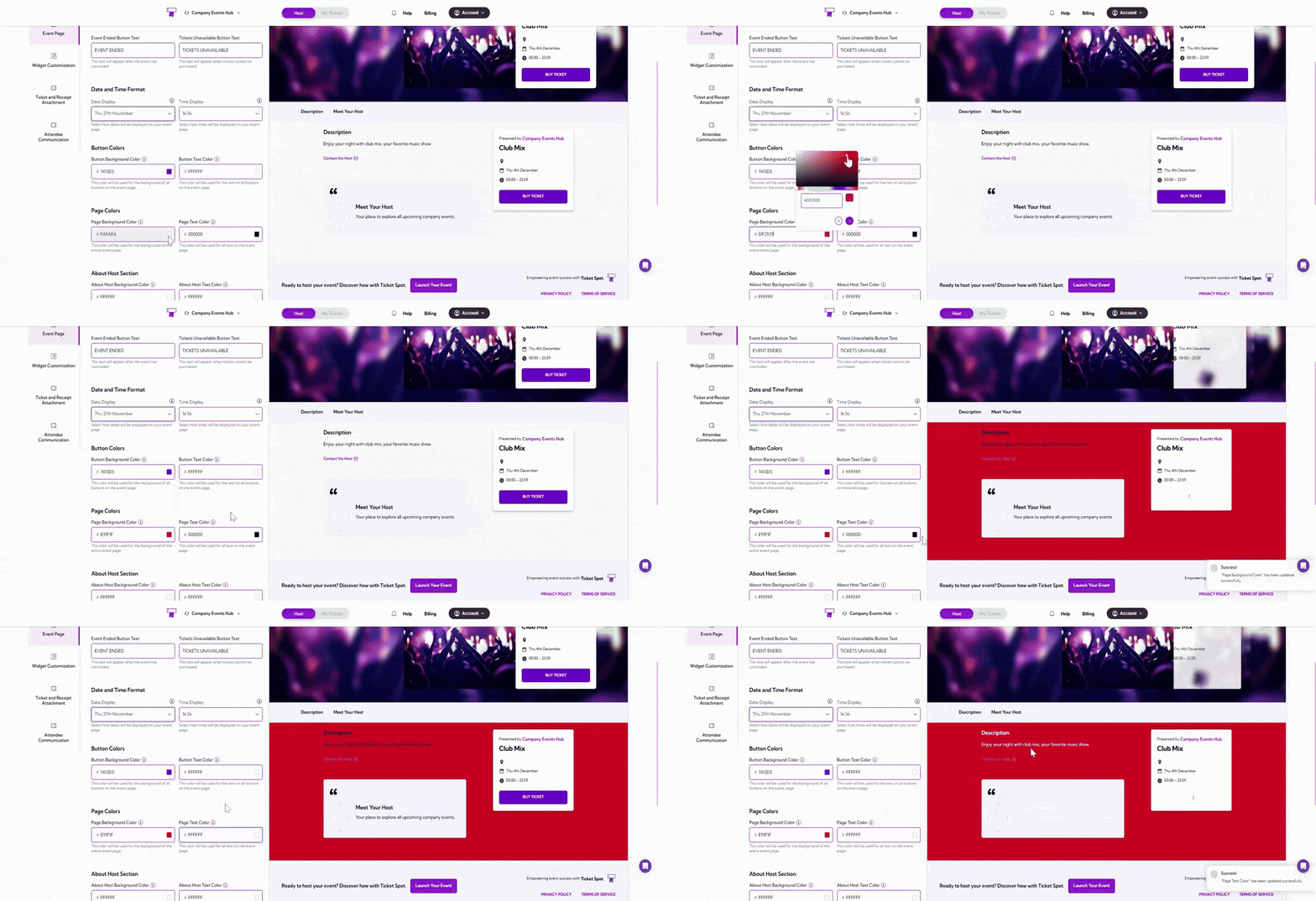
About Host Section
About Host section allows you to customize the colors used in the host information area on your event page. Adjusting these settings helps you maintain a consistent visual design and ensure the host details remain easy to read.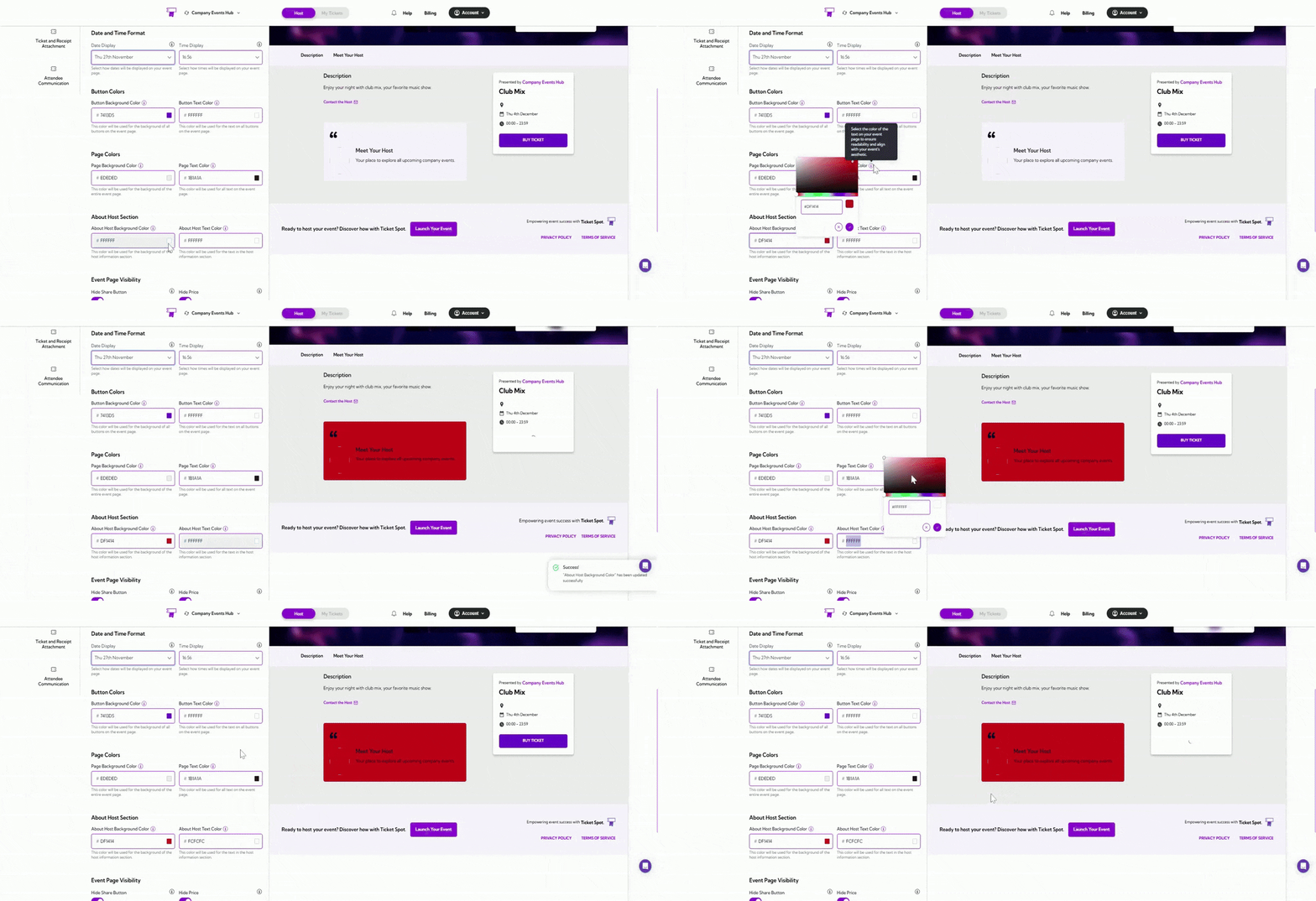
Event Page Visibility
Event Page Visibility section allows you to control what information and actions are visible on your event page. You can enable or disable specific elements to create the experience you want attendees to see.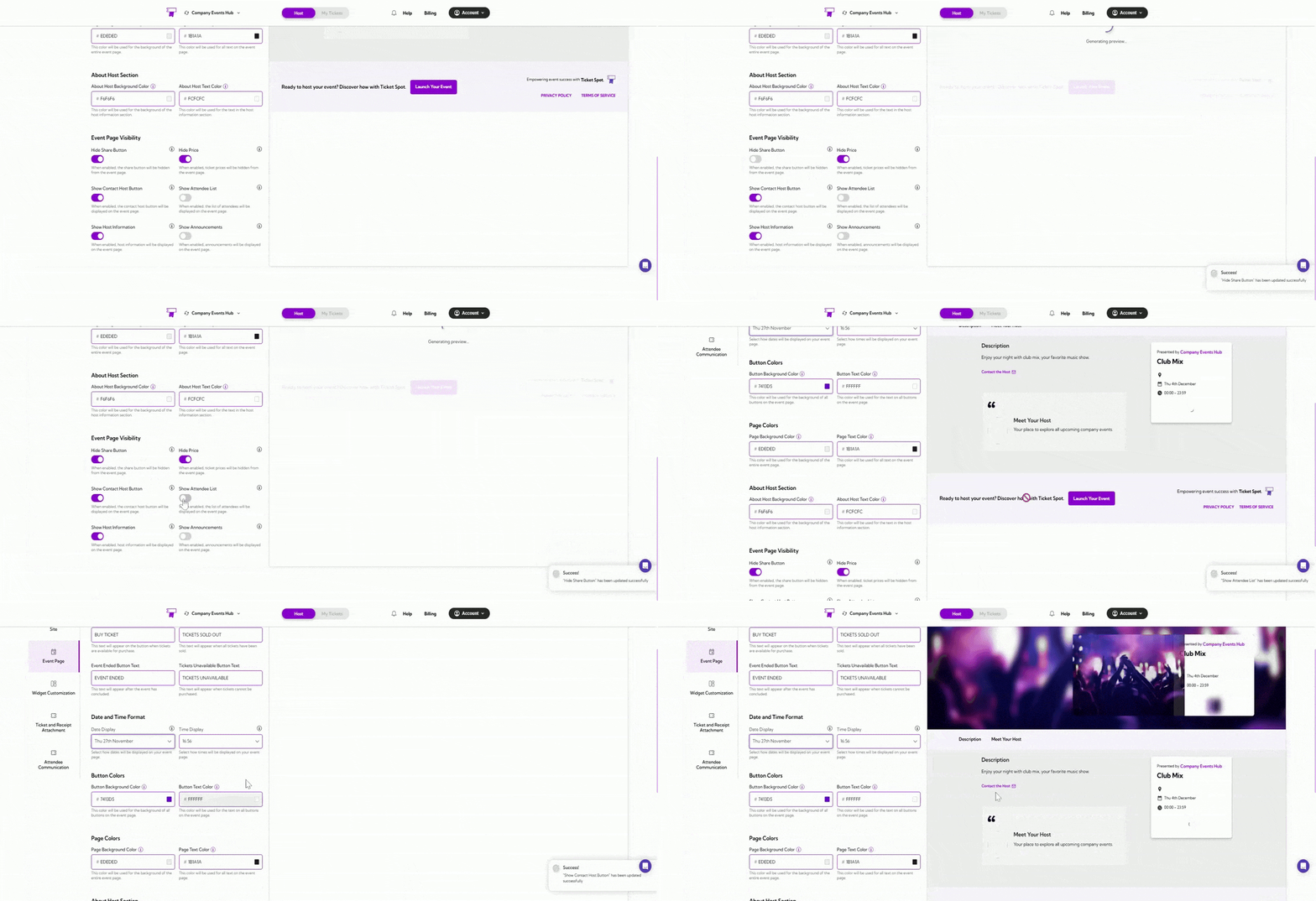
Preview Your Customizations
After making changes to your event page design, you can preview how it will appear on different devices. This helps ensure your layout, colors, and text display correctly on both desktop and mobile screens. Desktop Preview: Click the Desktop Preview tab to see how your event page will appear on desktop devices. Mobile Preview: Click the Mobile Preview tab to view how your event page will look on mobile devices.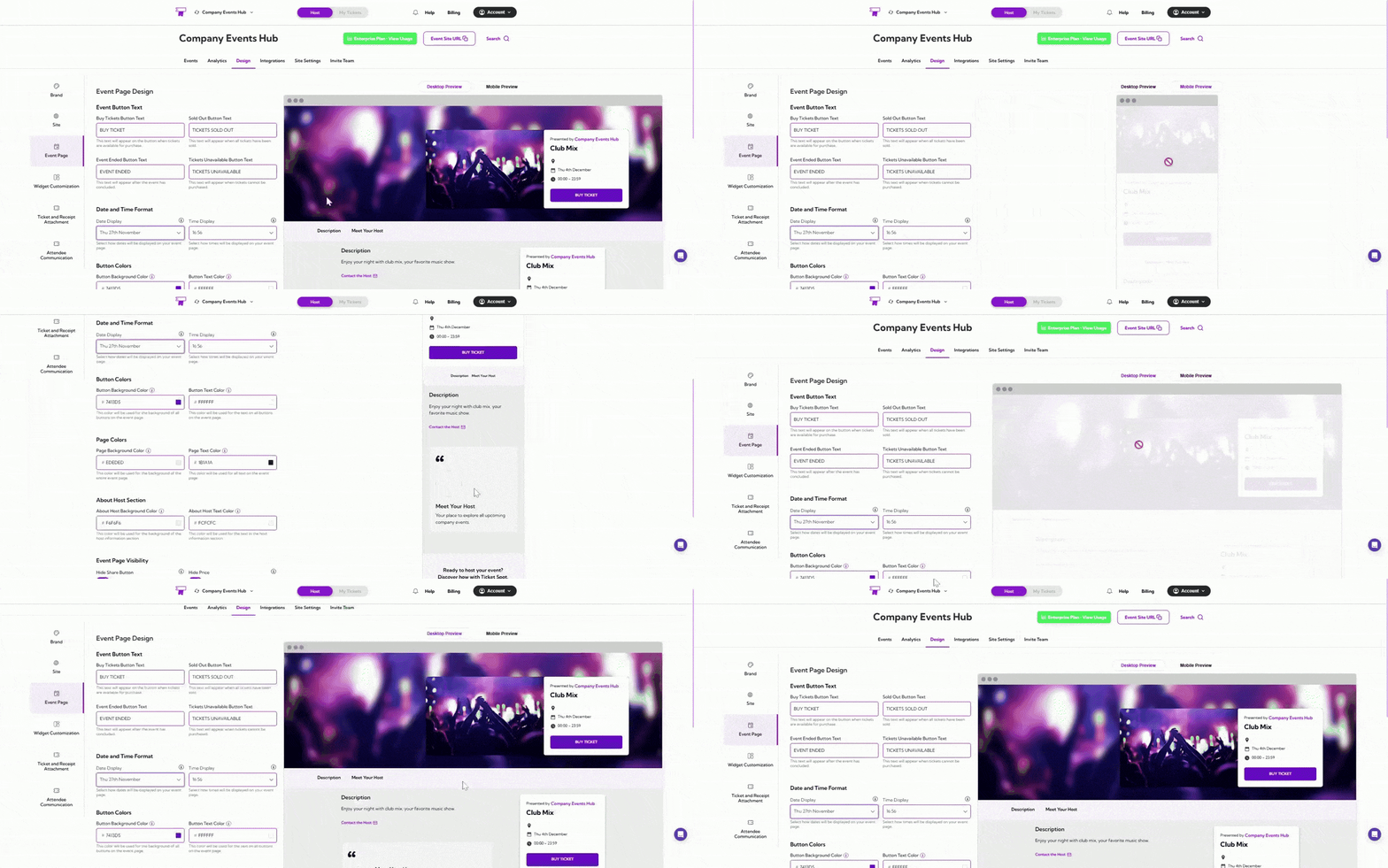
Tip: Use both previews to confirm that your event page design looks clean, readable, and well-structured across all screen sizes before publishing event.